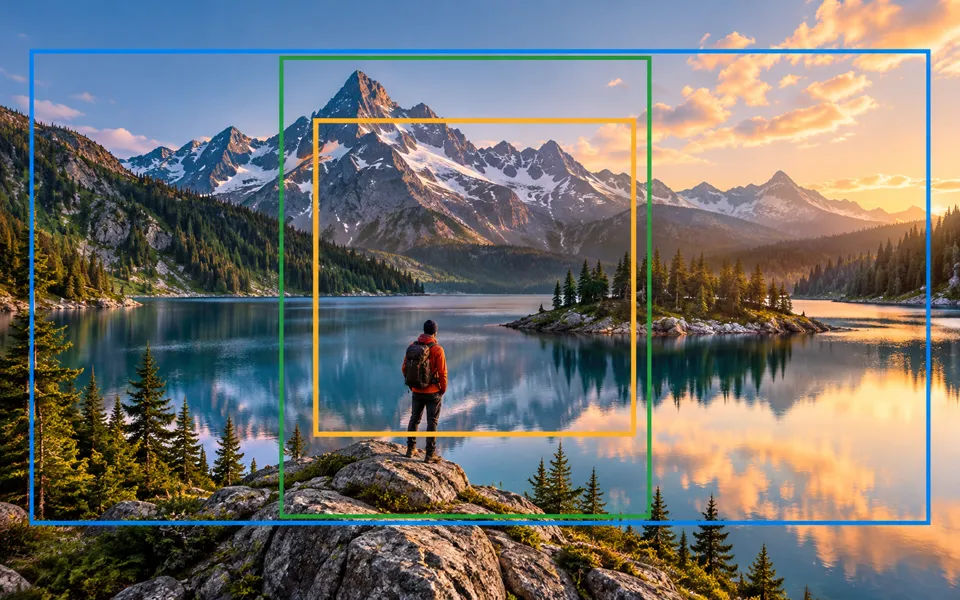
Fisheye Portrait
Bend a portrait with adjustable fisheye projection, field of view and lens center. Choose circular or full-frame output and download the edit on your device.
Opening the fisheye studio…
Choose a photo in the AI editor to upload it for cloud processing. Review the credit quote before generating.
Nano Banana 2 · Review your settings and credit quote
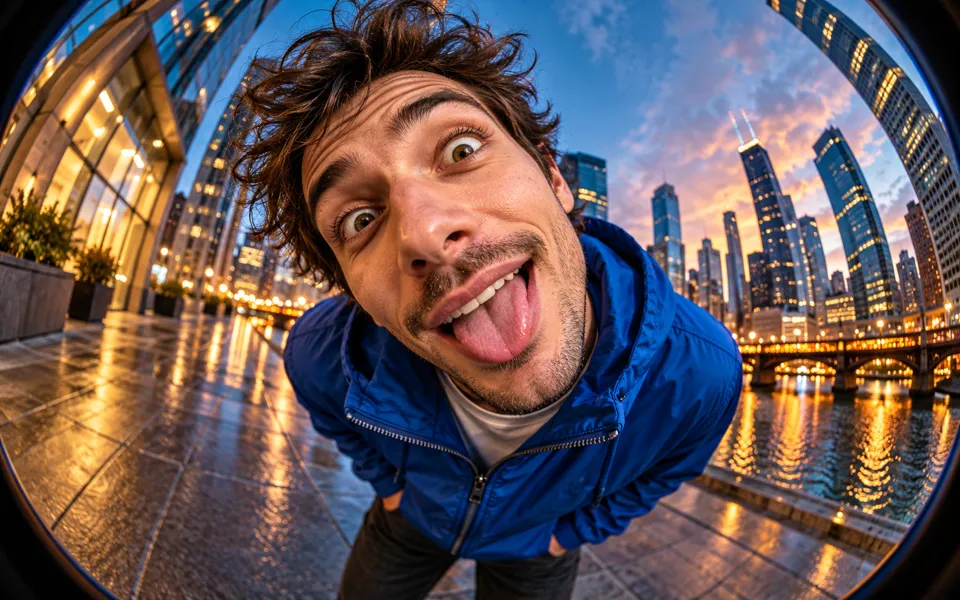
Place and adjust the lens
- 01
Open a photo with space around the subject
Start with a free local preview. A wide source gives more room to bend lines at the edges.
- 02
Choose the projection and center
Start with a preset, then adjust field of view and strength. Select Position center to drag or use the keyboard, or enter exact X and Y values.
- 03
Set the frame and export
Keep the full frame or make a circle with clear or colored corners. Compare with the original and download PNG, JPEG or WebP.
Find a new way to see it.
Bend a portrait with adjustable fisheye projection, field of view and lens center. Choose circular or full-frame output and download the edit on your device.
Add the requested inputs and use the quote to review the available settings before starting.
Explore related toolsFrequently asked questions
Clear policies on free channels, device privacy and file retention.
Read full product facts- How can the corners be transparent?
- Choose Circular, then Transparent under Outside the circle. PNG and WebP preserve transparency. JPEG fills transparent areas using its background color.
- What does field of view change?
- A larger angle exaggerates the center and curves more of the edges. The lens uses the pixels already present in your photograph.
- How do pricing and file retention work?
- The server confirms the credit quote before you submit. Available specifications and credits are shown in the creator. See Pricing for monthly and annual subscriptions. Reference images upload when you prepare an AI task. Guest results expire after one hour; signed-in creations are retained for 30 days. Download what you want to keep.