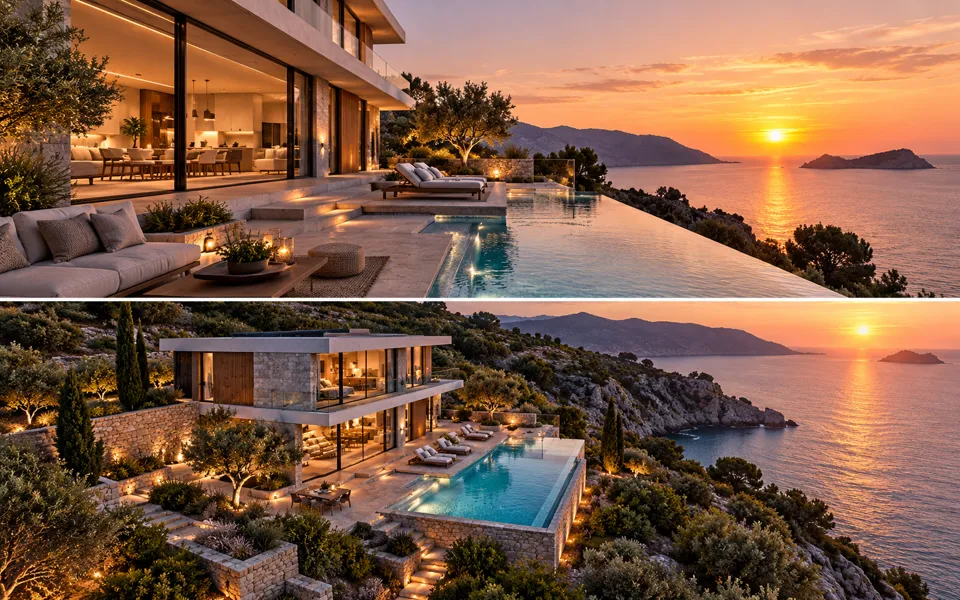
Image Variations
Explore alternate versions of one image. Choose how far to change it and what to keep from the original.
No compatible model is available for Image Variations.
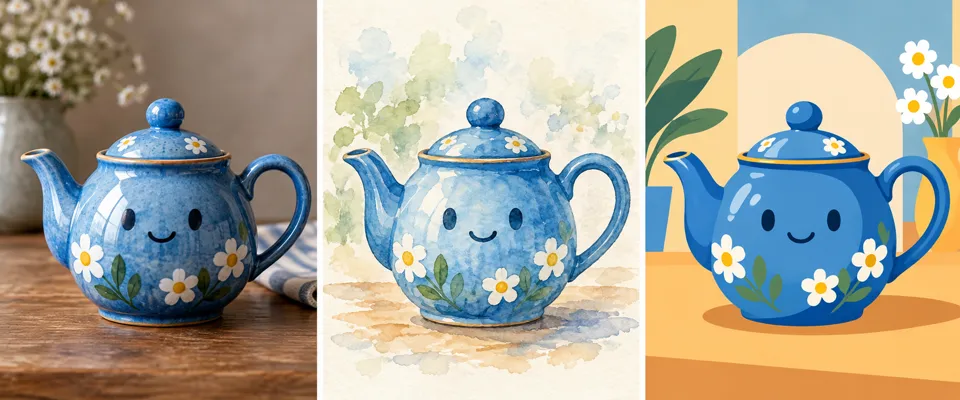
Explore one source image
- 01
Open a source image
Use one photo or illustration. You can open a sample, pick a file or select an existing upload.
- 02
Choose what to change
Pick Close, Balanced or Explore. Choose which part to preserve and add direction if needed. Upload your chosen source and review the total credit quote.
- 03
Compare and continue
Inspect a result against its source. When you have several in a set, choose two to compare. Download the one you want or use it as the next source.
See image variations in action.
Explore alternate versions of one image. Choose how far to change it and what to keep from the original.
Add the requested inputs and use the quote to review the available settings before starting.
Explore related tools

Frequently asked questions
Clear policies on free channels, device privacy and file retention.
Read full product facts- What does variation strength change?
- It tells the model how far to depart from the source. Subject, style or composition gives the model a separate preservation instruction.
- When is the source uploaded?
- A file or sample stays on your device until you choose Upload original for generation. Selecting an upload uses a copy already stored in your account.
- How do pricing and file retention work?
- The server confirms the credit quote before you submit. Available specifications and credits are shown in the creator. See Pricing for monthly and annual subscriptions. Reference images upload when you prepare an AI task. Guest results expire after one hour; signed-in creations are retained for 30 days. Download what you want to keep.