AI Filter
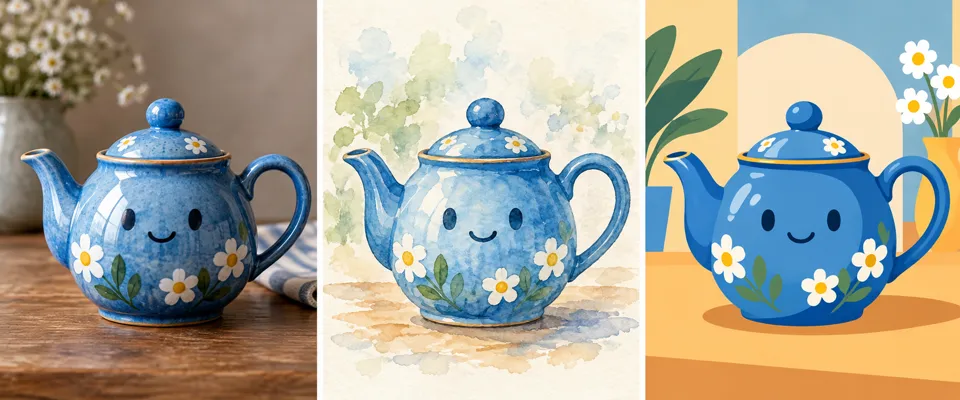
Choose a visual style, apply it to one photo and compare each result with the original.
No compatible model is available for AI Filter.

Find a style for your photo
- 01
Open one photo
Choose a JPEG, PNG or WebP on your device or open the portrait sample.
- 02
Compare filter examples
Browse illustration, 3D and pixel art. Open Compare style example to see what the selected filter changes. Choose Faithful or Expressive for your own photo.
- 03
Review, compare and download
Upload your chosen photo and review the credit quote. After generation, compare the result with the original, download it, or try another filter with the same source.
See where your idea can go.
Choose a visual style, apply it to one photo and compare each result with the original.
Add the requested inputs and use the quote to review the available settings before starting.
Explore related toolsFrequently asked questions
Clear policies on free channels, device privacy and file retention.
Read full product facts- What do the filter examples show?
- Each card shows a style study using the same sample portrait. The applied result follows your own source, chosen filter and guidance.
- When is my photo uploaded?
- Opening a file or sample stays on your device until you choose Upload original for generation. Uploads and creations reuses a photo already stored in your account.
- How do pricing and file retention work?
- The server confirms the credit quote before you submit. Available specifications and credits are shown in the creator. See Pricing for monthly and annual subscriptions. Reference images upload when you prepare an AI task. Guest results expire after one hour; signed-in creations are retained for 30 days. Download what you want to keep.