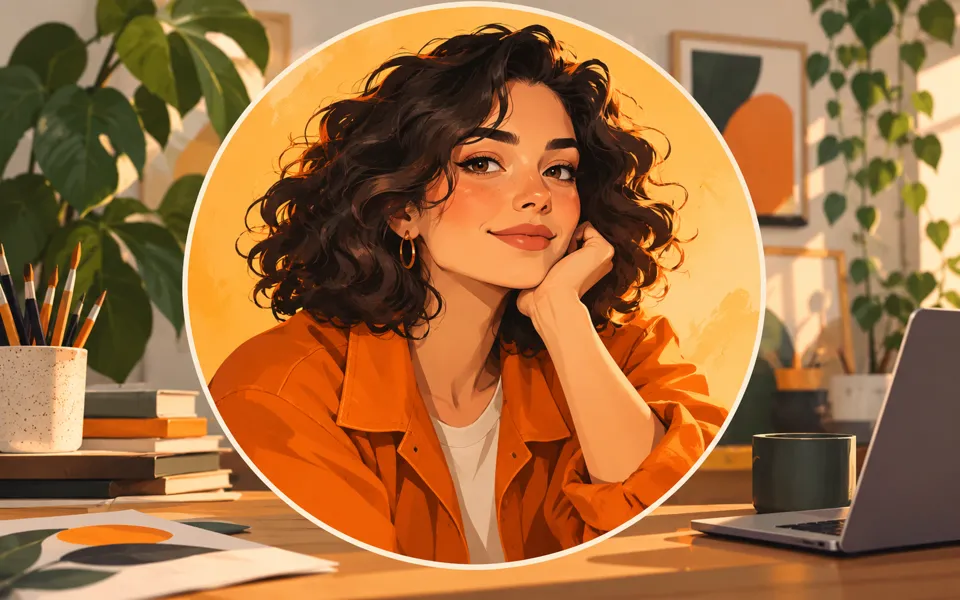
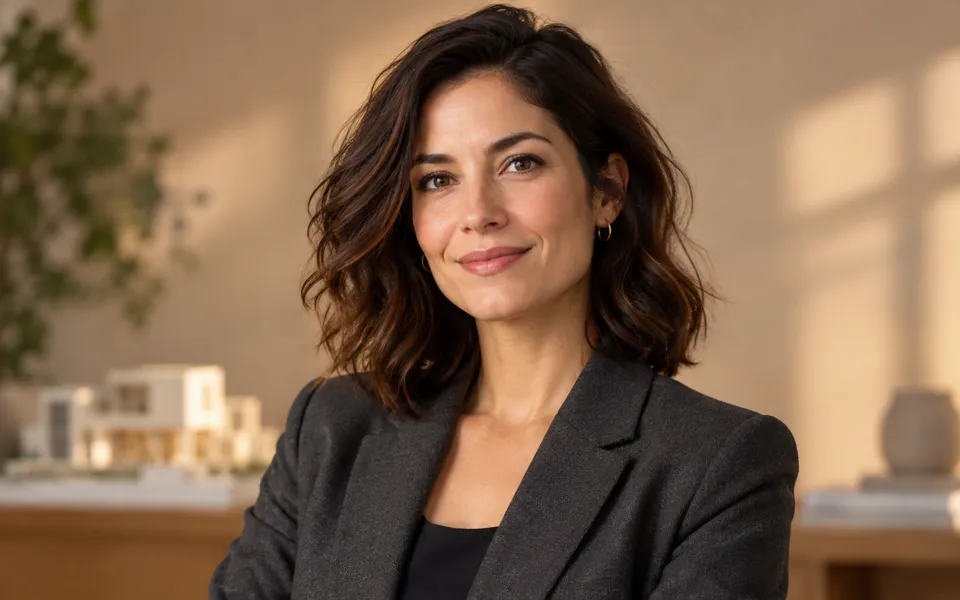
AI Profile Picture Maker
Edit a profile photo for free on your device: remove the background, repair edges, add color, borders and text. Or create a new portrait from one to five photos of the same person or a description.
Opening profile picture studio…
Nano Banana 2 · Review your settings and credit quote

Make a profile picture that is easy to recognize
- 01
Edit a photo or create a new portrait
Choose a local photo for the free studio. To generate a new portrait, start with one to five photos of the same person or describe an original persona.
- 02
Keep your identity and choose a look
For generation, set the look, features, background, expression and framing. Changing looks keeps your written details and photos. Review the credit quote before generating.
- 03
Finish and check the small preview
Remove the background locally, repair edges, position the photo and add a backdrop, border or caption. Check the 64 px and 32 px previews, then download PNG or JPG.
Find a new way to see it.
Edit a profile photo for free on your device: remove the background, repair edges, add color, borders and text. Or create a new portrait from one to five photos of the same person or a description.
Add the requested inputs and use the quote to review the available settings before starting.
Explore related toolsFrequently asked questions
Clear policies on free channels, device privacy and file retention.
Read full product facts- Is the profile studio free?
- Yes. Local photo editing, background removal, repair, framing, text and downloads use no credits and do not upload your photo. Generating a new portrait is a separate action with a confirmed credit quote.
- How many photos do I need for generation?
- One clear photo is enough. You can add up to five photos of the same person from different angles. Use photos you have permission to edit. Text starts create an original persona without a reference identity.
- Will generated portraits look exactly like me?
- Reference photos and Features to keep guide the result, but the model can change facial details. Check the eyes, glasses, hair and face shape before using a portrait.
- What happens when I remove the background?
- The browser downloads the local background model on first use and processes the photo on your device. The model is about 183 MiB. Keep the tab open, cancel if needed, and inspect the edges afterward.
- Can I fix a cutout?
- Use Repair edges to erase unwanted areas or restore original pixels. Drag to paint, or move the brush with arrow keys and press Space. The original photo is kept; Use original switches back while retaining your repair strokes. Clear repairs removes those strokes.
- How do I get transparent corners?
- Choose PNG and a circle or rounded shape. A transparent backdrop also preserves the cutout background. JPG fills transparency with the chosen JPG background color.
- Can I save an editable project?
- Save profile project downloads the original photo, cutout, background photo and current settings in one file. Open it later in the free studio. Editing history stays in the tab and is bounded to keep memory usage manageable.
- Does a larger download add detail?
- No. The studio offers 256, 512, 1024 and 2048 px square downloads and shows when the photo is being enlarged. Many profile sites apply their own circular crop; keep the face near the center.
- How do pricing and file retention work?
- The server confirms the credit quote before you submit. Available specifications and credits are shown in the creator. See Pricing for monthly and annual subscriptions. Reference images upload when you prepare an AI task. Guest results expire after one hour; signed-in creations are retained for 30 days. Download what you want to keep.