Face Cutout
Select a face from a portrait or group photo, refine the edges and download a transparent PNG.
Opening the cutout editor…
Adding a photo to the AI editor uploads it for cloud processing.
Nano Banana 2 · Review your settings and credit quote
Cut out a face from the original photo
- 01
Choose a portrait or group photo
Open a JPEG, PNG or WebP. The editor looks for up to six faces on your device.
- 02
Select the person and refine the edges
Keep the face, the head and hair, or the hair alone. Use the Keep and Remove brushes for details such as glasses and stray hairs.
- 03
Download transparent PNGs
Keep the original canvas or crop around the cutout. Export one person or download the group as a ZIP.
See face cutout in action.
Select a face from a portrait or group photo, refine the edges and download a transparent PNG.
Add the requested inputs and use the quote to review the available settings before starting.
Explore related tools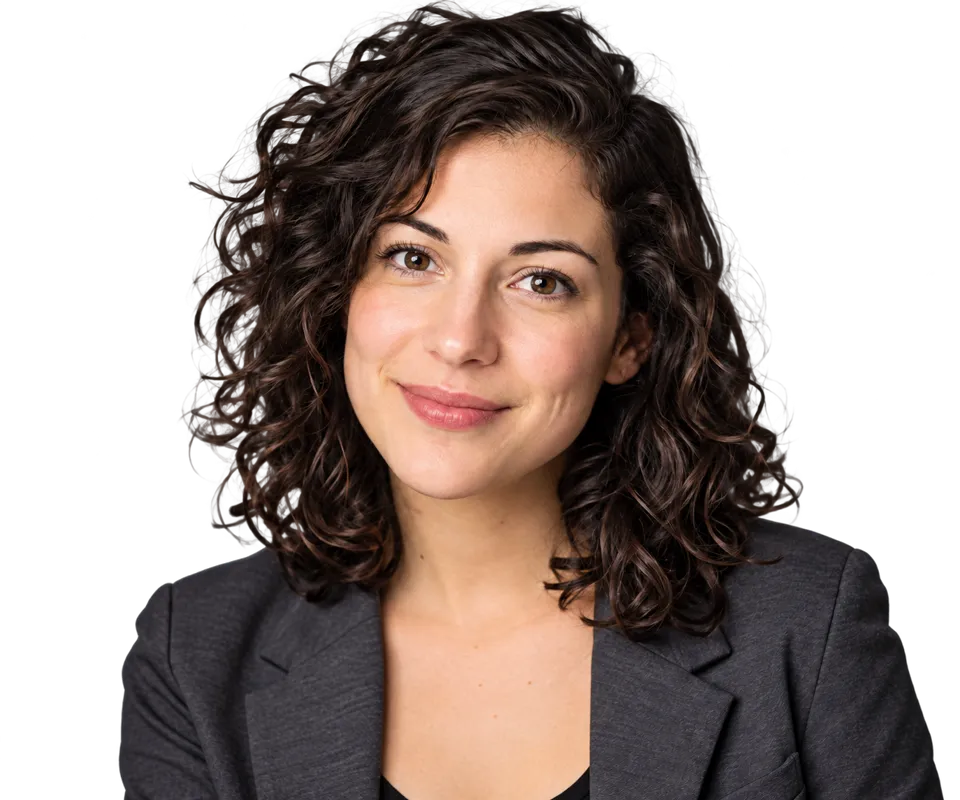

Frequently asked questions
Clear policies on free channels, device privacy and file retention.
Read full product facts- Does the cutout editor upload my photo?
- The local editor detects, refines and exports on your device without credits. Photos you choose in the AI editor follow that editor’s upload and credit flow.
- What if a small or covered face is missed?
- Try a closer, well-lit photo or choose Manual area. Draw a starting area and refine its silhouette with the brushes.
- How do pricing and file retention work?
- The server confirms the credit quote before you submit. Available specifications and credits are shown in the creator. See Pricing for monthly and annual subscriptions. Reference images upload when you prepare an AI task. Guest results expire after one hour; signed-in creations are retained for 30 days. Download what you want to keep.